
THE CANDIDATE GUIDE
Your exam starts
with a code.
Have your assignment code and access to your email ready. Check your setup, read the rules, and focus on your exam. No password to create.
Step by step.
Give yourself fifteen minutes before your exam's start time for the first four steps.
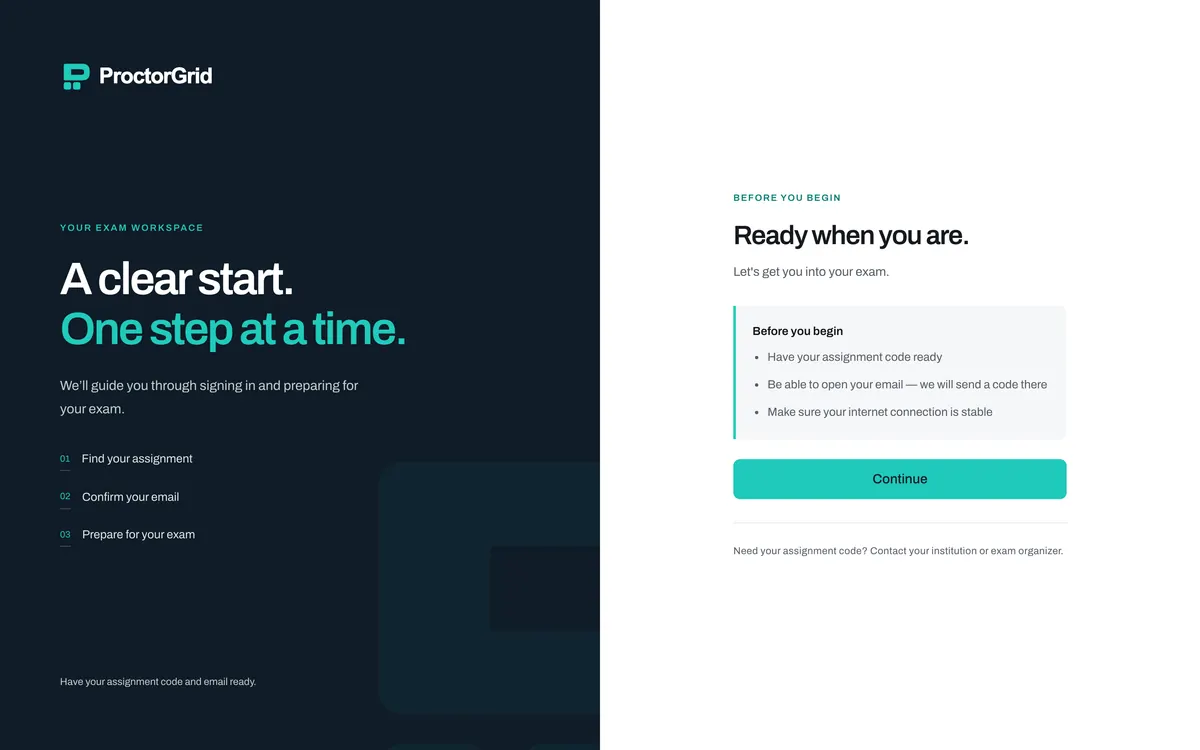
Find your assignment code
Your exam organiser emails it to you, with the exam's name and time. It looks like ABCD-1234. Keep that email handy.
Open the exam
Use the desktop app if your exam needs it, or open Start exam in a browser if your exam allows that. The email says which.
Sign in
Enter the assignment code, check the exam details are right, then enter the one-time code we email to you. Only the newest code works.
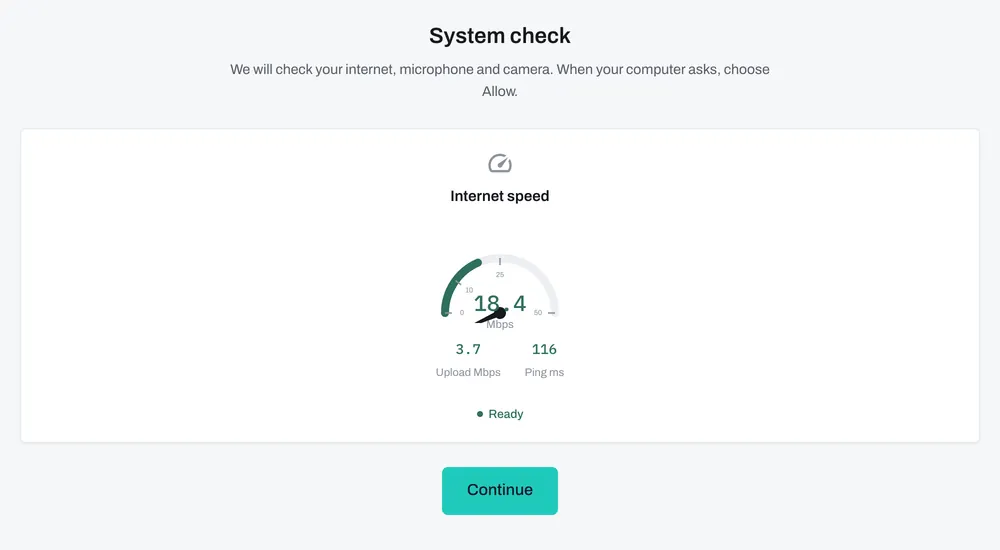
Prepare your space, then check your computer
Tick through a short checklist, such as closing other apps and silencing notifications. Then we test your internet and, if your exam uses them, your camera and microphone. When your computer asks for permission, choose Allow.
Show your ID, if your exam asks
Some exams ask for a photo of your ID and of your face. If your exam allows it, you can take the ID photo with your phone by scanning a QR code. A member of staff may check it before or during the exam.
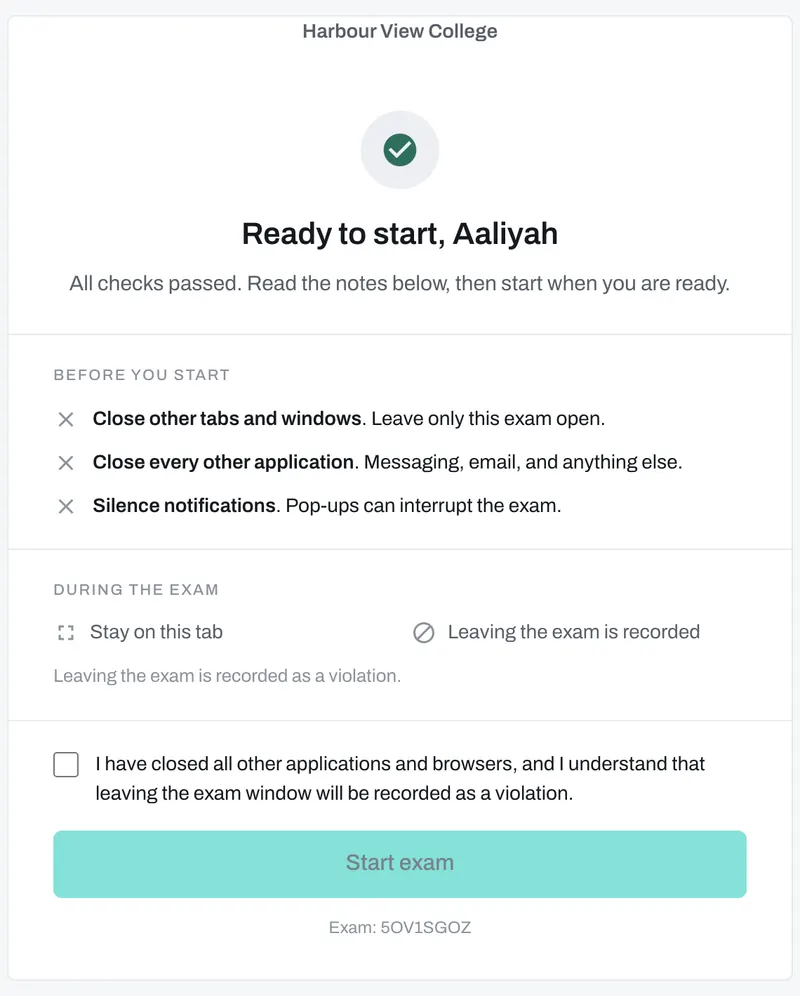
Read the rules and start
You will see exactly what the exam watches, for example whether leaving the exam window is recorded. Confirm, and the clock starts.
Take the exam
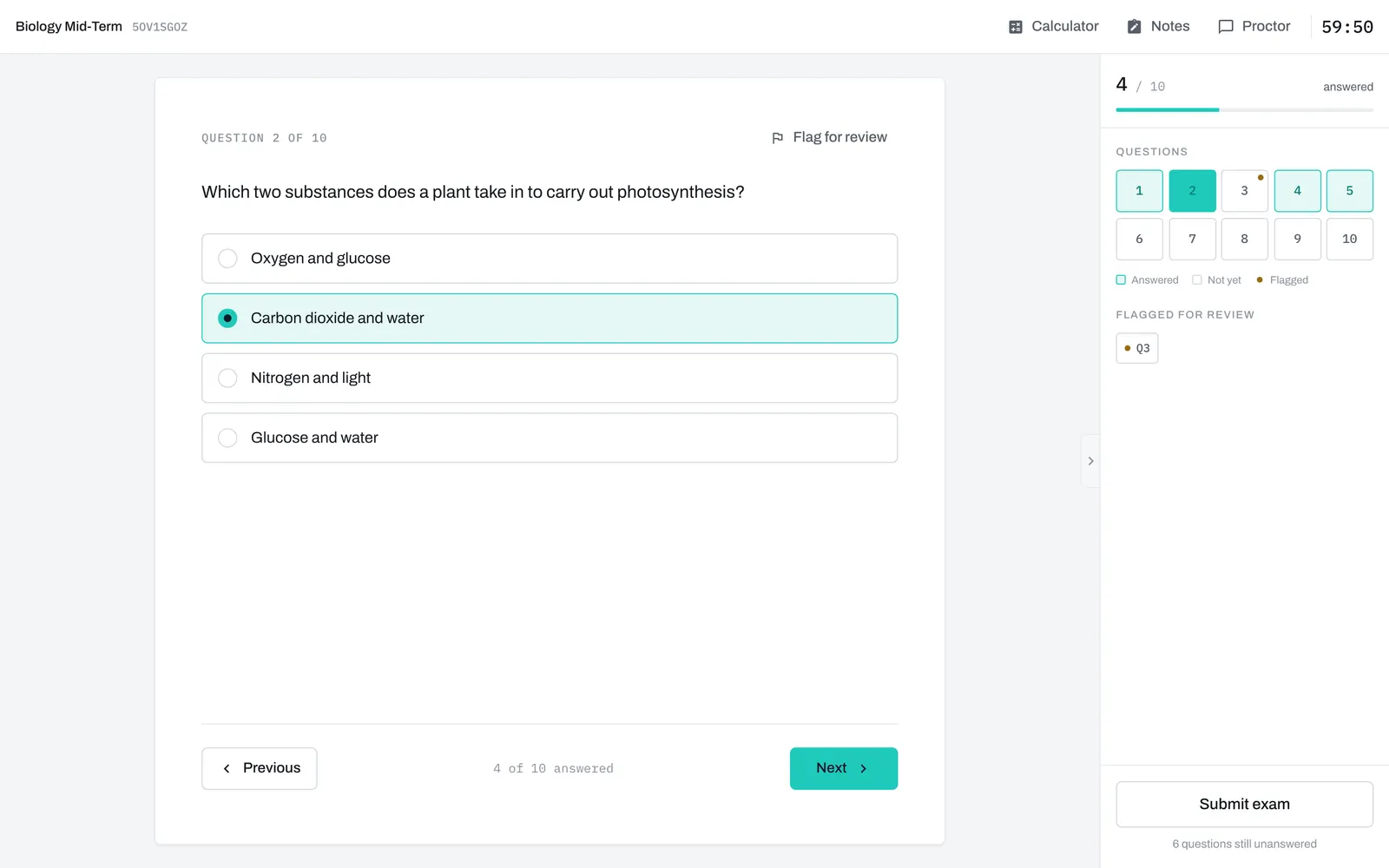
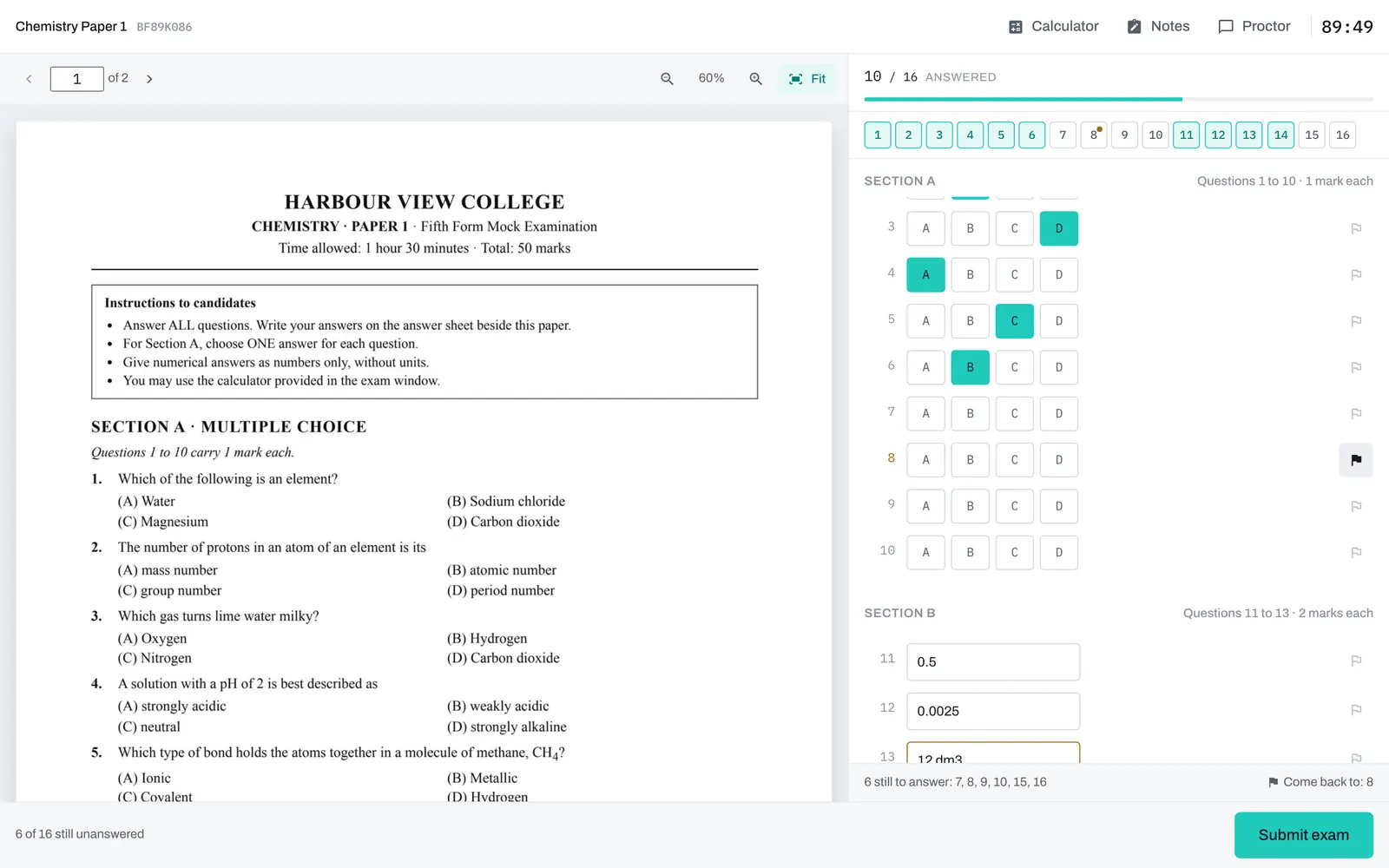
Answer in any order if your exam allows it, flag questions to come back to, and use the calculator or notes if they are switched on. Every answer saves as you go. If your internet drops, your answers wait on your computer and send when it comes back, so keep the window open.
Submit exam
Submit when you are done. If time runs out, what you have saved is handed in for you. You will see your result straight away only if your exam is set up that way.
Paper exams look like paper.
If your exam uses its own question paper, you will see it on the left, page by page, with an answer sheet on the right. Press A, B, C or D to fill in a multiple choice answer and move to the next one. For essays there is a bigger writing box and a word count.
Desktop app or browser?
Your exam organiser chooses for each exam. You cannot switch, so check your email or ask your exam organiser.
The ProctorGrid desktop app
For Windows and Mac computers. Many exams require it.
- Applies the exam’s full-screen and application restrictions
- Notices a second monitor or a switch to another program
- If your exam needs the app, a browser will not let you in, and it will tell you so when you enter your code
Your exam organiser gives you the installer. Install it and open it once before exam day.
A web browser
Only for exams that have been opened to browsers.
- Use an up-to-date web browser on a computer, and run the system check early
- Leaving the exam tab can be flagged according to the exam rules
- Exams are sat on a computer, not a phone. A phone is only used for the ID photo, when allowed
If something goes wrong.
- Before the examLost your code, or your details are wrong? Contact your exam organiser. They can resend it.
- During the examUse the Proctor button at the top of the exam screen to message the person watching your sitting.
- Your internet dropsKeep the exam window open. Your answers are kept on your computer and sent when the connection comes back.
- The code email has not arrivedCheck your spam folder, then ask for a new code. Only the newest one works.
ProctorGrid does not run your exam or set its rules. Your exam organiser does. Contact us only if your exam organiser has asked you to.